# Using Tmux
Terminal multiplexers, like `tmux` or `Screen`, are great utilities for expanding a standard Linux terminal's features, like having multiple windows within one terminal and jumping between them. Let's see some examples of using `tmux`, which is the more common of the two. If `tmux` is not present on our Linux system, we can install it with the following command:
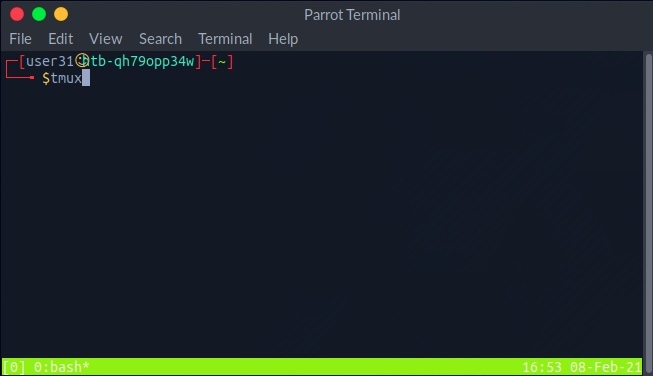
Once we have `tmux`, we can start it by entering `tmux` as our command:
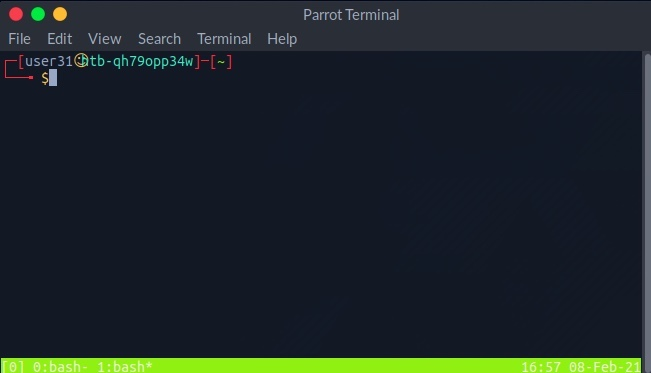
The default key to input `tmux` commands prefix is `[CTRL + B]`. In order to open a new window in `tmux`, we can hit the prefix 'i.e. `[CTRL + B]`' and then hit `C`:
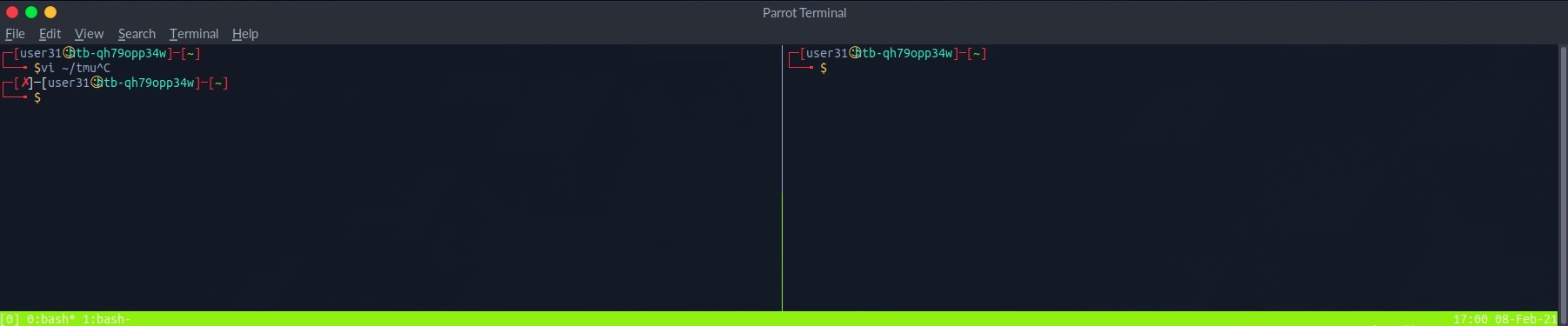
We see the numbered windows at the bottom. We can switch to each window by hitting the prefix and then inputting the window number, like `0` or `1`. We can also split a window vertically into panes by hitting the prefix and then `[SHIFT + %]`:
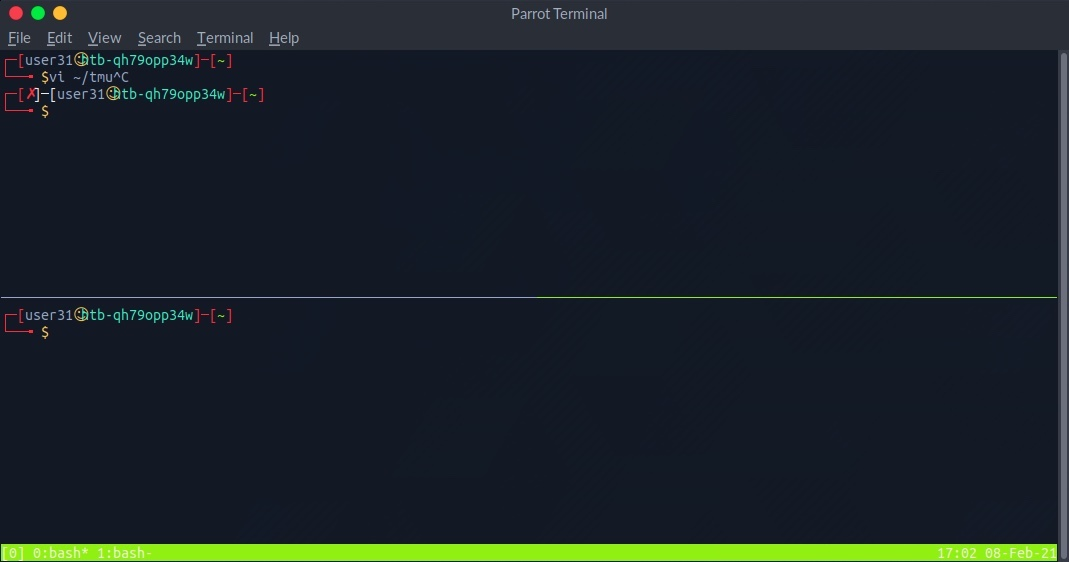
We can also split into horizontal panes by hitting the prefix and then `[SHIFT + "]`:
We can switch between panes by hitting the prefix and then the `left` or `right` arrows for horizontal switching or the `up` or `down` arrows for vertical switching. The commands above cover some basic `tmux` usage. It is a powerful tool and can be used for many things, including logging, which is very important during any technical engagement.
{% embed url="" %}
This [Introduction to tmux](https://www.youtube.com/watch?v=Lqehvpe_djs) video by `ippsec` is worth your time.
{% embed url="" %}