# Using Vim
[Vim](https://linuxcommand.org/lc3_man_pages/vim1.html) is a great text editor that can be used for writing code or editing text files on Linux systems. One of the great benefits of using `Vim` is that it relies entirely on the keyboard, so you do not have to use the mouse, which (once we get the hold of it) will significantly increase your productivity and efficiency in writing/editing code.
We usually find `Vim` or `Vi` installed on compromised Linux systems, so learning how to use it allows us to edit files even on remote systems. `Vim` also has many other features, like extensions and plugins, which can significantly extend its usage and make for a great code editor. Let's see some of the basics of `Vim`. To open a file with `Vim`, we can add the file
If we want to create a new file, input the new file name, and `Vim` will open a new window with that file. Once we open a file, we are in read-only `normal mode`, which allows us to navigate and read the file. To edit the file, we hit `i` to enter `insert mode`, shown by the "`-- INSERT --`" at the bottom of `Vim`. Afterward, we can move the text cursor and edit the file:
Once we are finished editing a file, we can hit the escape key `esc` to get out of `insert mode`, back into `normal mode`. When we are in `normal mode`, we can use the following keys to perform some useful shortcuts:
| Command | Description |
| ------- | -------------- |
| `x` | Cut character |
| `dw` | Cut word |
| `dd` | Cut full line |
| `yw` | Copy word |
| `yy` | Copy full line |
| `p` | Paste |
> Tip: We can multiply any command to run multiple times by adding a number before it. For example, '4yw' would copy 4 words instead of one, and so on.
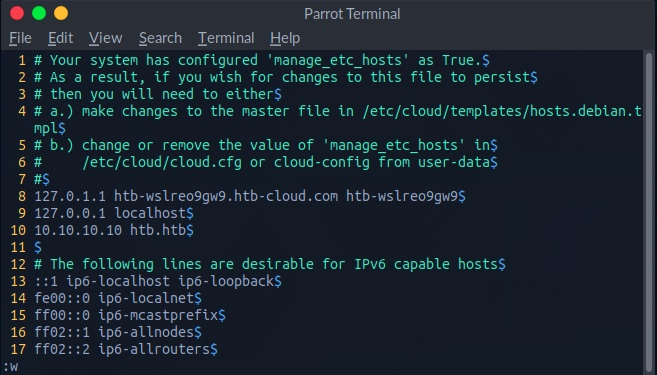
If we want to save a file or quit `Vim`, we have to press`:` to go into `command mode`. Once we do, we will see any commands we type at the bottom of the vim window:
There are many commands available to us. The following are some of them:
| Command | Description |
| ------- | -------------------- |
| `:1` | Go to line number 1. |
| `:w` | Write the file, save |
| `:q` | Quit |
| `:q!` | Quit without saving |
| `:wq` | Write and quit |
`Vim` is a very powerful tool and has many other commands and features.
{% embed url="" %}